Private WEB Demo Walkthrough
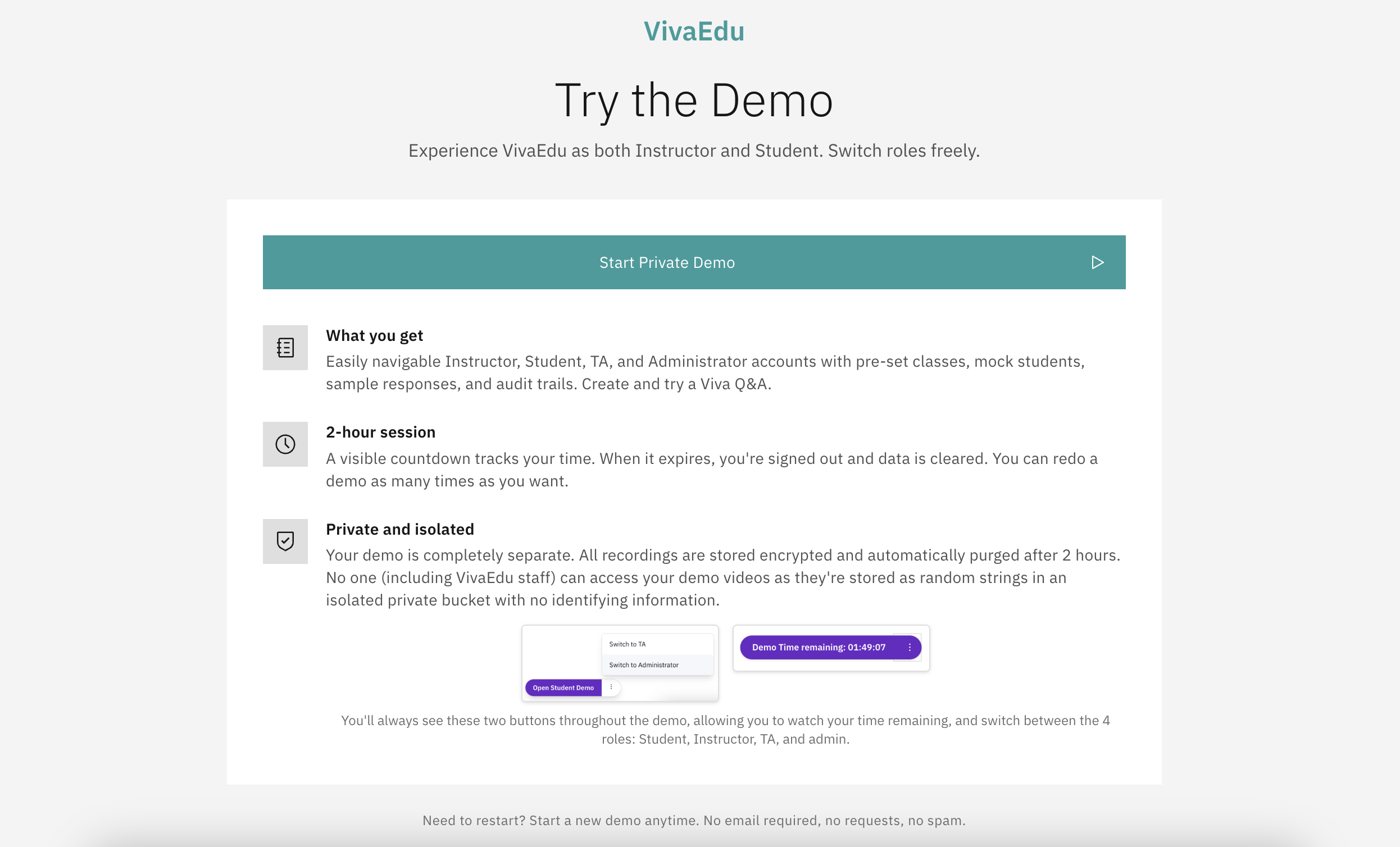
The Private Demo is the best way to explore VivaEdu risk-free! You'll get a fully isolated environment with mock data where you can test all features as different user roles: Instructor, Student, Admin, and TA. While you can do demos from Blackboard Learn Ultra, Moodle, and Canvas, the web one is the easiest to access and test quickly.
Nothing you do affects real data, and everything is automatically deleted after 2 hours (effective and working as of 2 Jan 2026). It's the perfect playground to explore VivaEdu.
How to start
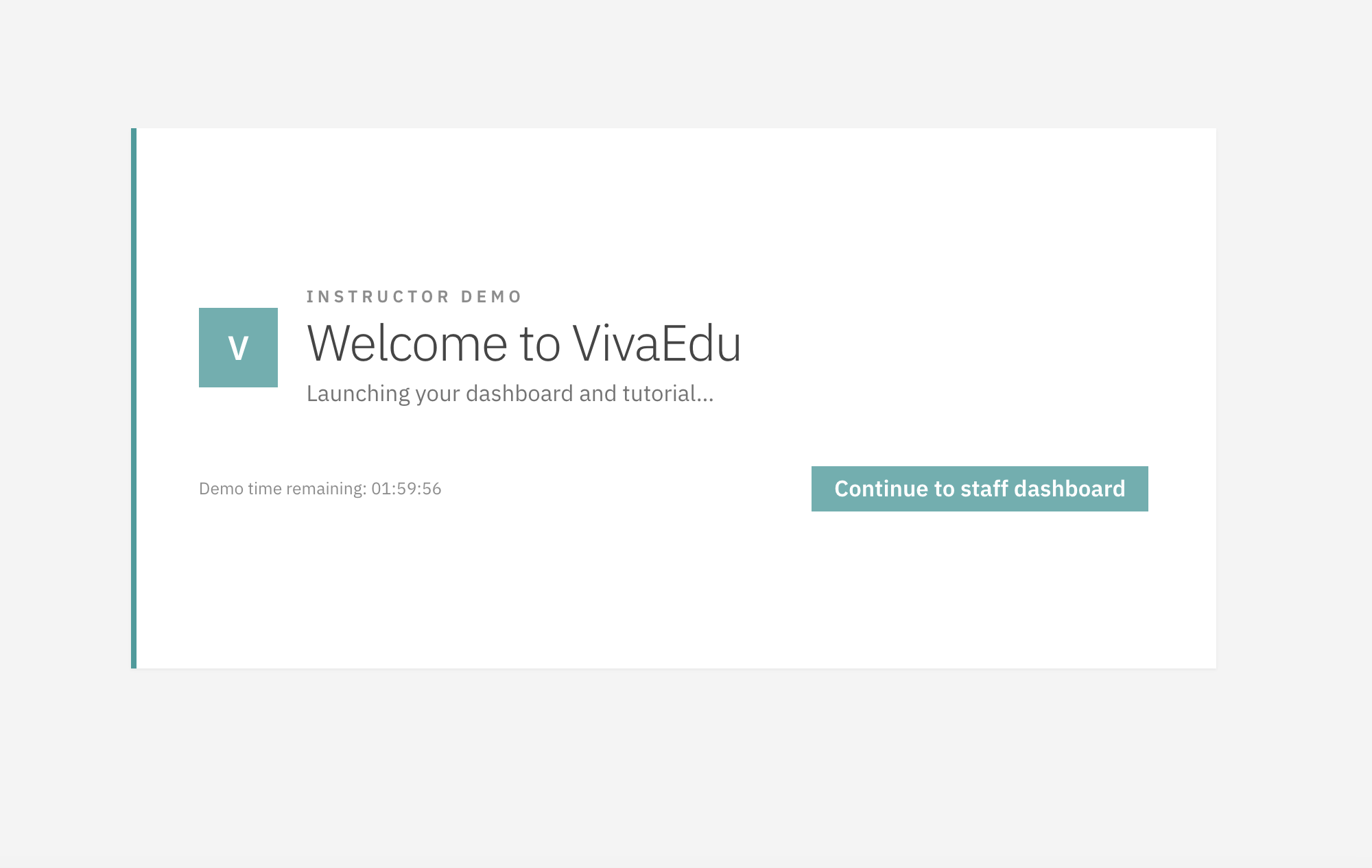
Click the Start Private Demo button on the landing page. It will take you to the demo entry page below.
Demo Features
Role Switching
One of the most powerful features of the web demo is the ability to switch roles instantly:
- Look for the demo control bar (typically at the bottom of the screen)
- Click the role switcher dropdown
- Select: Teacher, Student, TA, or Admin
- The page refreshes and you're now in that role

Tip: The demo control bar is hidden during certain workflows (like the viva creation wizard or when taking a viva) to avoid disrupting the experience. It reappears when you navigate back to main pages.
Demo Timer
The demo control bar shows how much time remains in your session:
- Each demo lasts 2 hours with a live countdown and warnings. When it hits 0, you are logged out and the demo data is deleted.

What's Included in the Demo
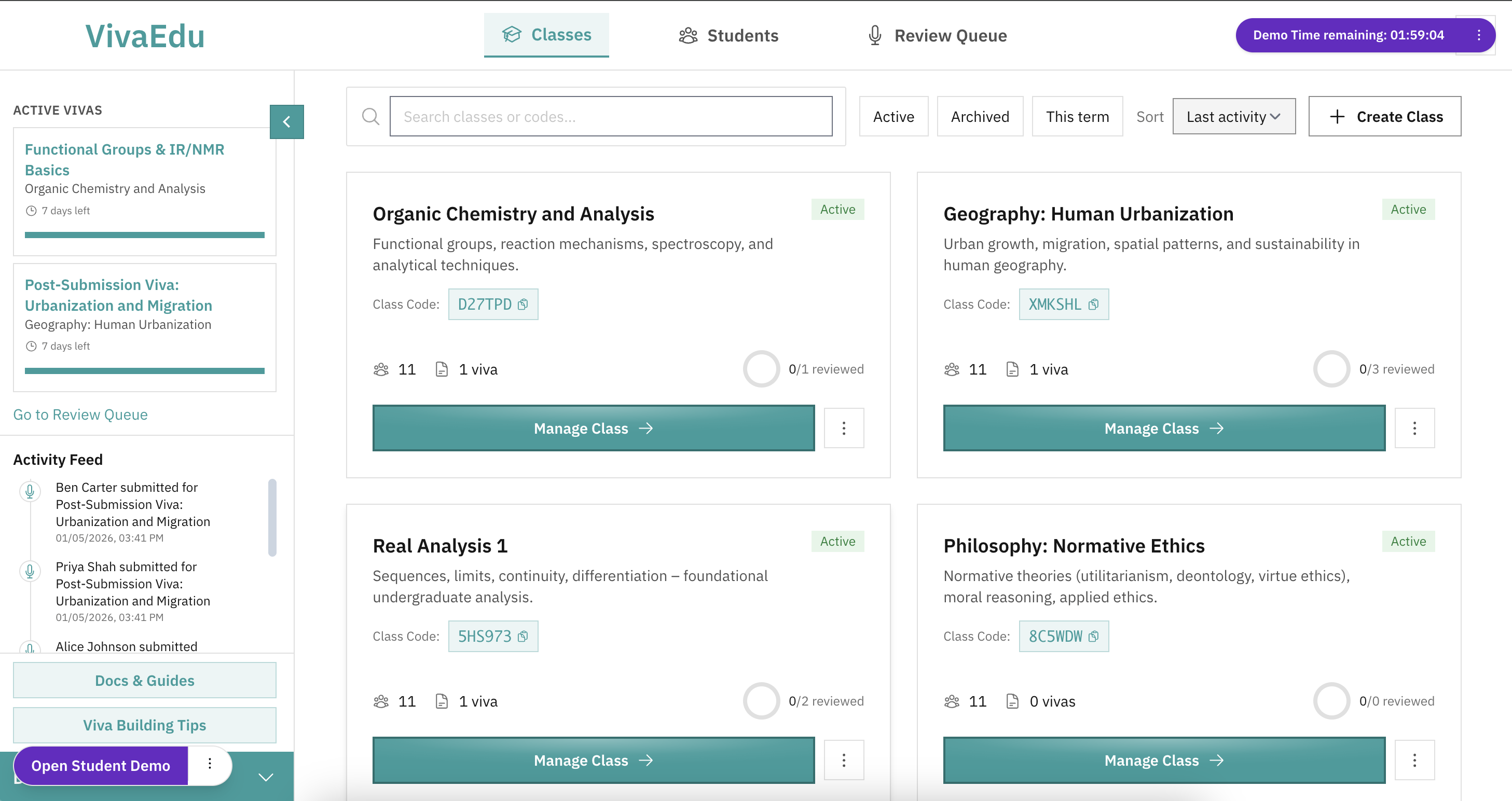
As Instructor
- Pre-existing classes: View sample classes with enrolled students
- Create new vivas: Go through the entire 7-step creation wizard
- Sample submissions: Mock students have already completed some vivas - review them!
- Mock audio playback: Sample viva responses use Azure text-to-speech for realistic audio
- Full review workflow: Grade rubrics, add feedback, export results
- Student management: Set accommodations, grant extensions, view profiles
As Student
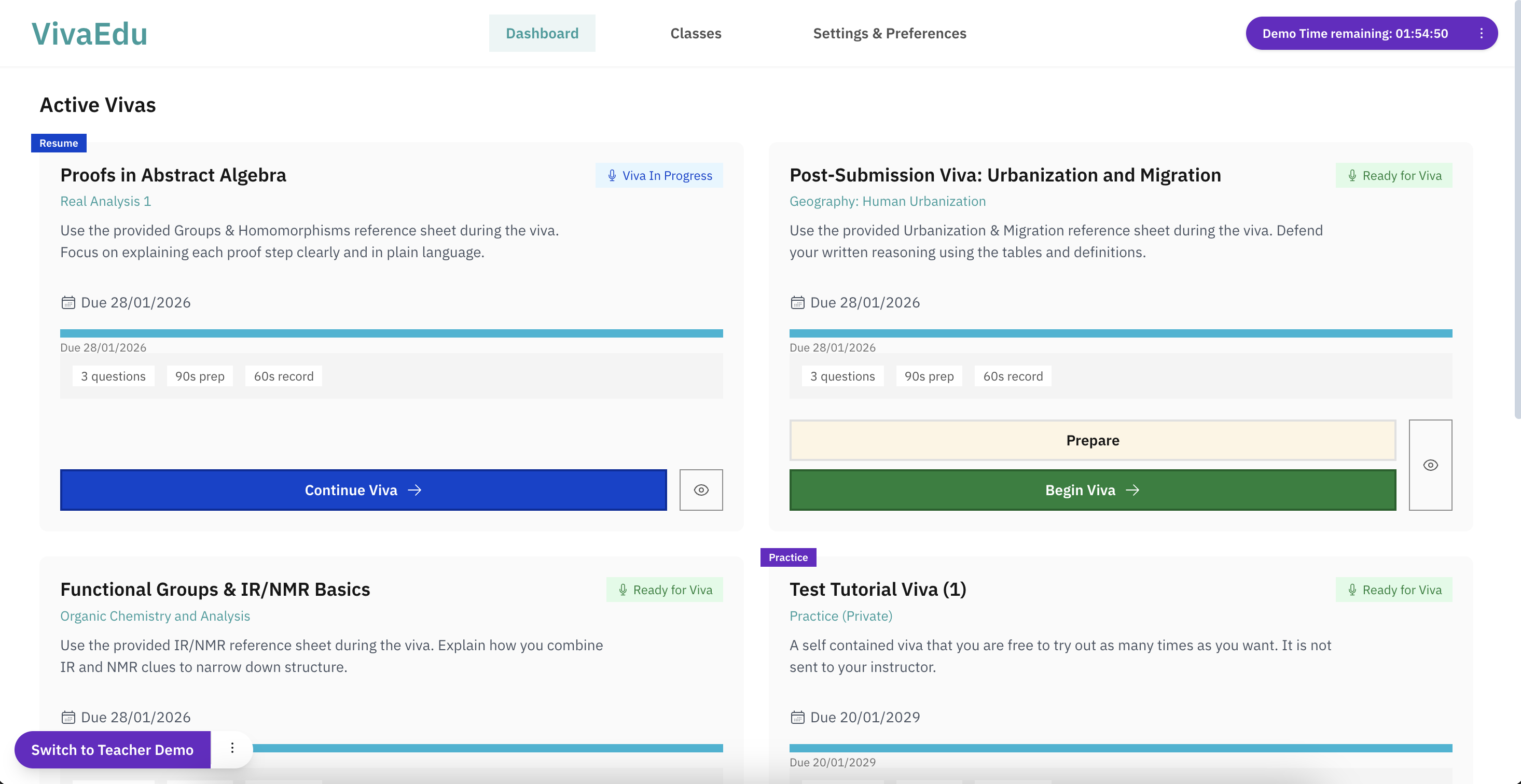
- Dashboard: See assigned vivas in various states
- Test viva: A permanent practice viva you can try anytime (no video stored)
- Take a viva: Go through the full student experience including preview, setup, and recording
- View submissions: See completed vivas with audio playback and transcripts
- Settings: Configure preferences and accommodations
As TA (Teaching Assistant)
- Review student transcripts, not video/audio recordings (read-only access to instructors' classes)
- View class rosters and student profiles with randomized character strings for students instead of their real names
As Admin
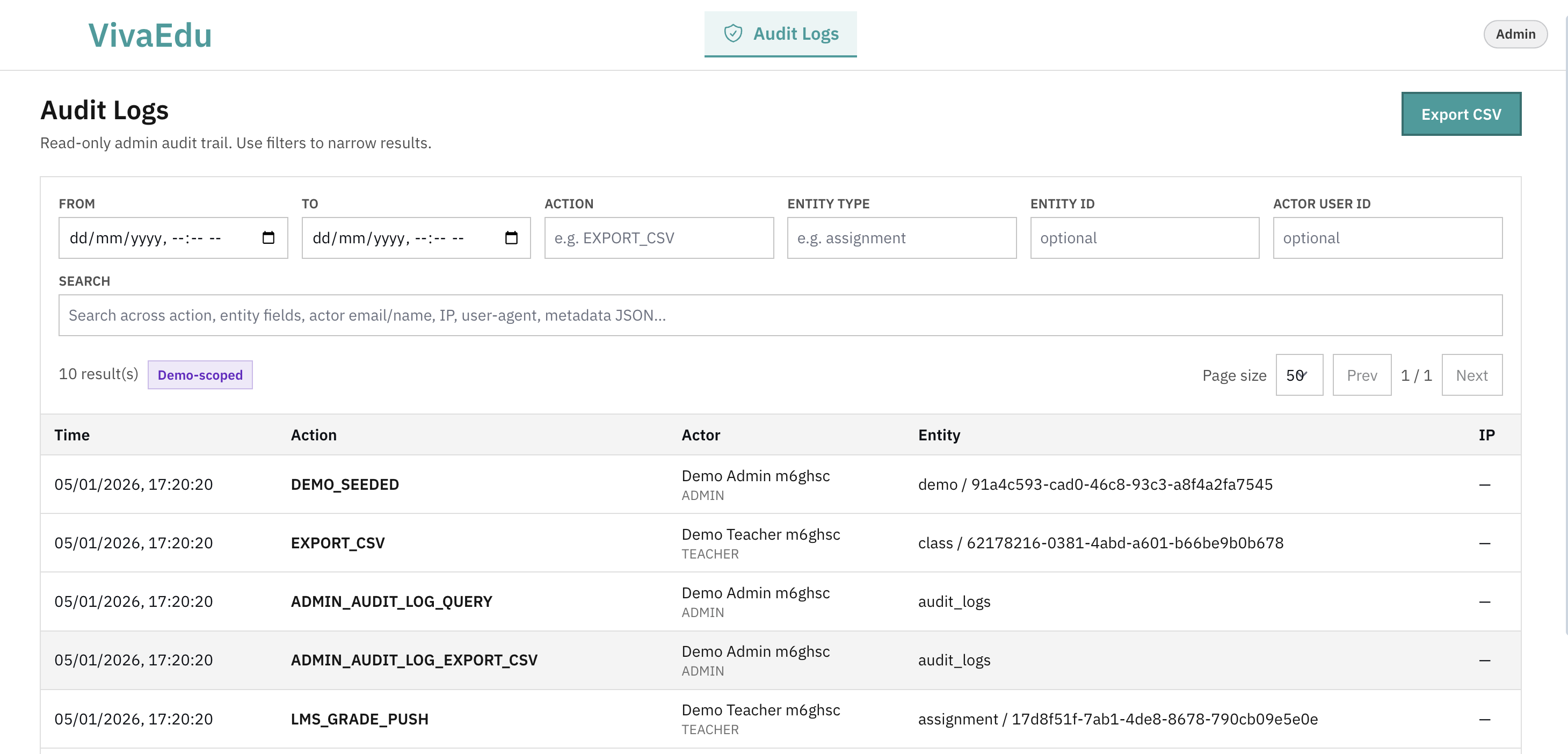
- Audit logs: View all logged actions within your demo tenant
- Users: View and manage demo users within your sandbox
- Overview: See basic health checks (Database, Redis, Storage status)
- Note: The demo Admin Console shows a reduced feature set. Operational pages like Metrics, Queues, Workers, and Retention are hidden in demo mode. For details on what's available vs hidden, see Admin Console in Demo Mode. For the full institutional Admin Console documentation, see Admin Console.
Recommended Demo Flow
- Explore the instructor dashboard
- View a sample class and its students
- Review a completed viva submission
- Try creating a new viva (go through a few wizard steps)
- View your student dashboard
- Try the test viva to experience the student workflow
- View a completed submission with feedback
- Explore settings and preferences
- Switch to Admin role
- View audit logs
- See what actions are tracked
- Try filtering and exporting logs
- See what is blurred (student names, video recordings)
Demo Limitations
The demo is comprehensive, but has a few intentional limitations:
- No real LMS integration: LMS features are simulated (you can't connect to a real Blackboard/Moodle)
- Mock audio only: Pre-recorded viva responses use synthesized TTS voices
- No external emails: Email notifications are logged but not actually sent
- No persistent data: Everything is deleted after 2 hours
- Limited mock students: Only a handful of mock students are pre-populated
- No demo bubble overlap: While this used to be the case, you can no longer join other demo bubbles via class join.
After the Demo Expires
When your demo ends, you will be logged out and all sandbox data is permanently deleted. You can start a fresh demo any time from the landing page.
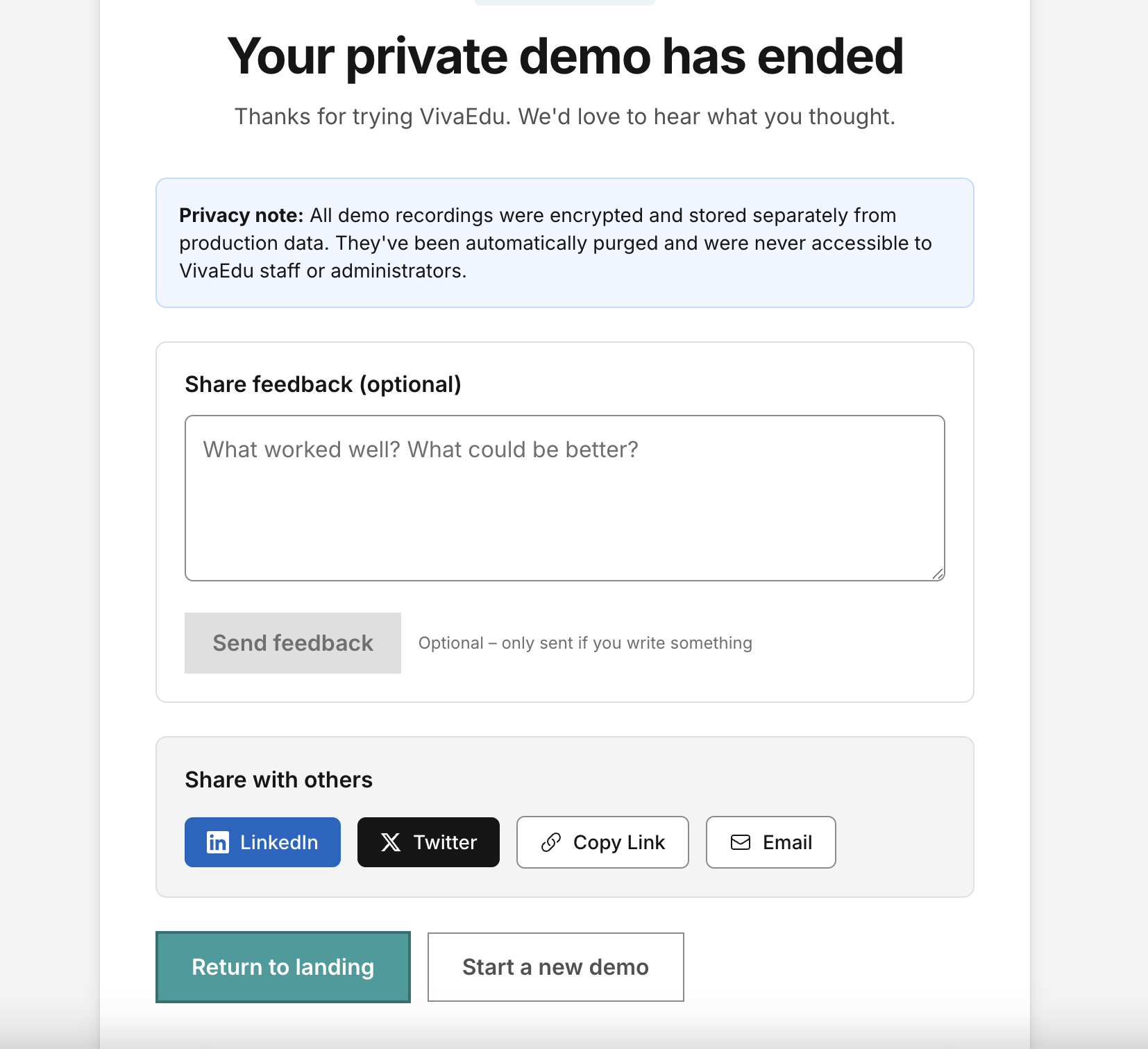
Want to continue exploring? You can start a new demo session as many times as you like. Each session is completely fresh with new mock data.
Comments
Leave a comment, question, or feedback. Comments are public — please don’t include personal data.