VivaEdu integrates directly with your Learning Management System. You launch it from your course, and everything works seamlessly: single sign-on, roster sync, and students access it right where they already do their coursework.
Select your LMS below to see how to add VivaEdu to your course.
Before you start: Your institution's LMS administrator needs to have registered VivaEdu as an LTI 1.3 tool. This is a one-time setup. If you click the VivaEdu tool and get an error, contact your LMS admin to complete the integration.
Step 1: Add VivaEdu to Your Course
In Blackboard Learn Ultra, you add external tools like VivaEdu directly into your course content.
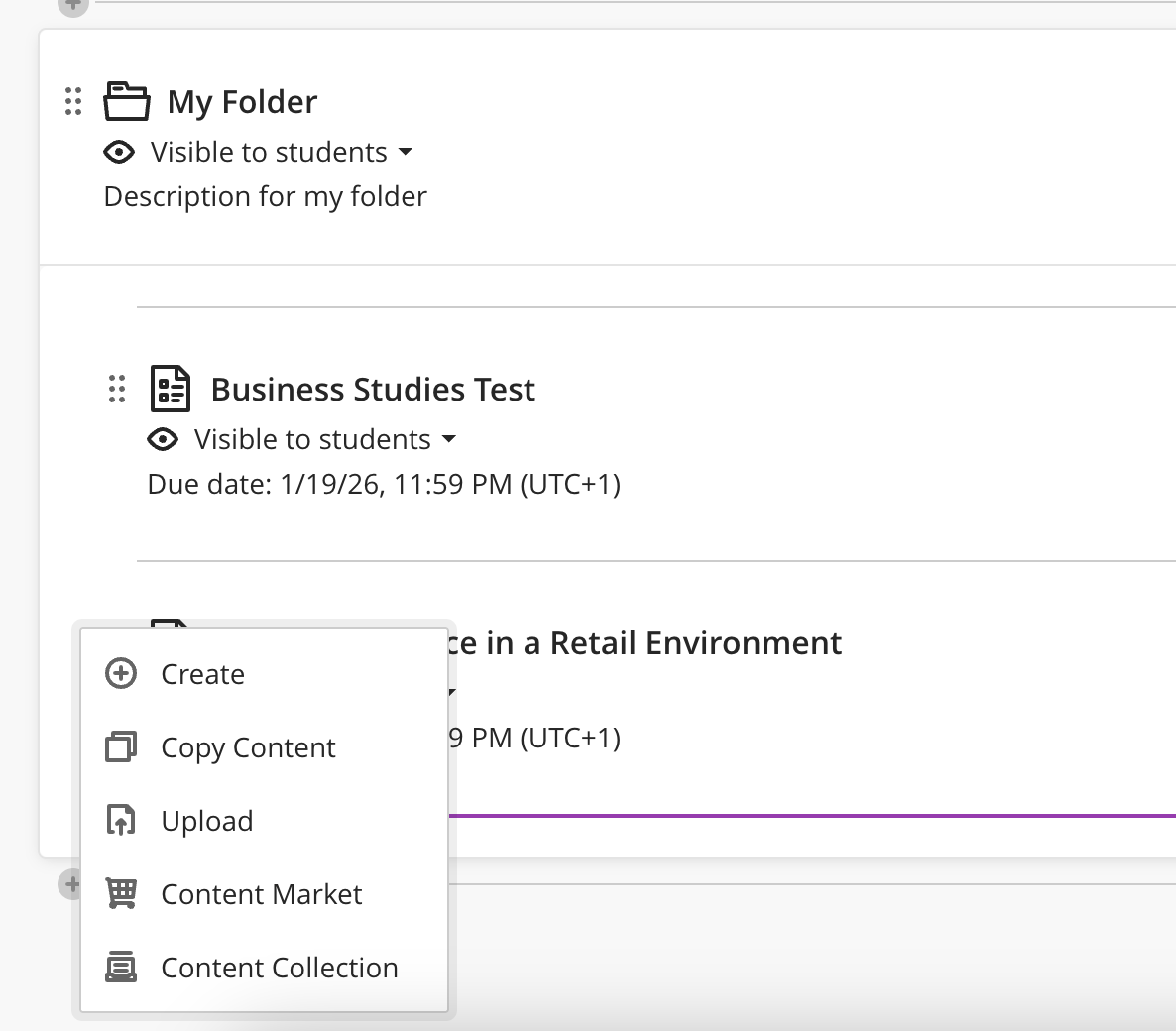
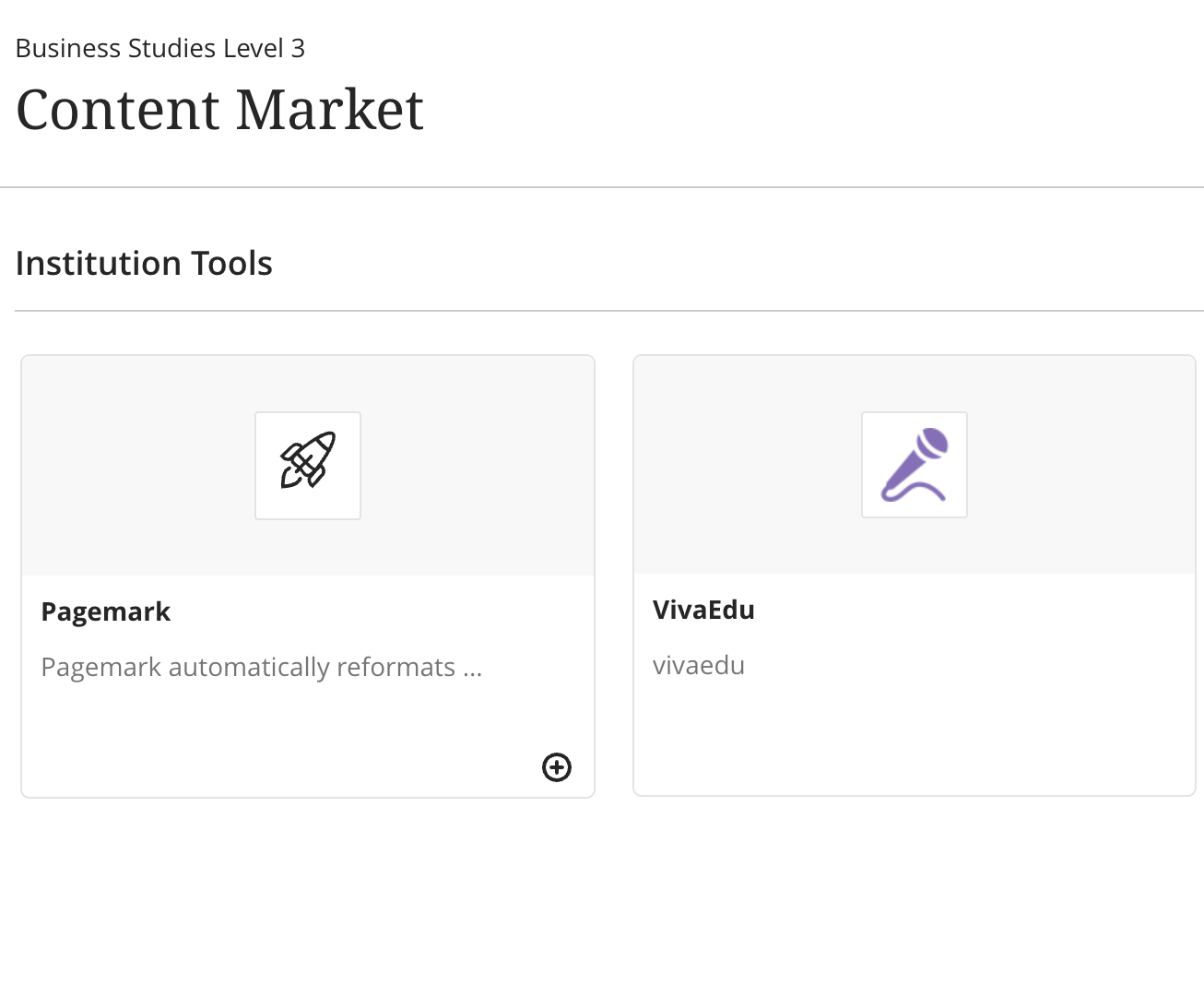
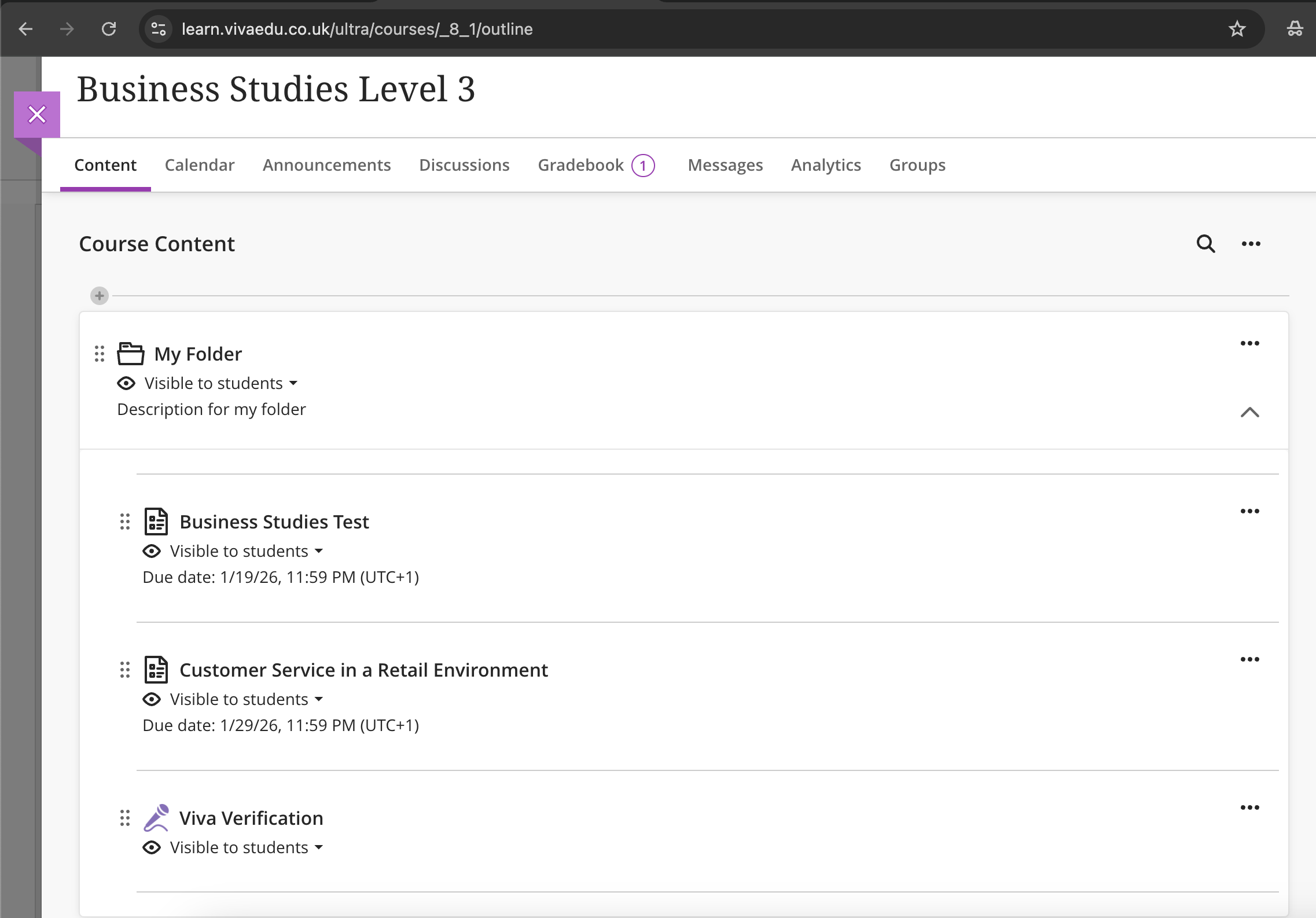
Once added, VivaEdu appears as a link in your course content. Both you and your students will click this link to access VivaEdu.
Step 2: Launch VivaEdu
When you click the VivaEdu link as an instructor, you'll see a mode selector asking what you want to do. This opens inside your LMS in an iframe, keeping you in your familiar environment.

See It in Action
This animation shows the full flow: adding VivaEdu to your course and choosing between Q&A vivas or verification mode.
Hover over the animation to start the demo.
Step 3: Choose Your Viva Type
After launching, you pick which type of viva you want to create:
For entire classes. Create once, assign to all students. Use the 7-step wizard to configure questions, rubrics, and timing.
- • Same questions for all students
- • Link to existing LMS assignments
- • Due date scheduling
- • Ideal for formative assessment
For individual students. Create targeted follow-up questions based on their specific submission. Single-page setup.
- • Questions tailored to their work
- • AI generates from their submission
- • Student notified via email
- • Ideal for integrity concerns
What Students See
When students click the same VivaEdu link in your course, they go directly to their student dashboard. They see any vivas you've assigned to them and can start when ready.
Students never see the mode selector or creation tools. They just see their assigned vivas and can complete them at their own pace within your configured availability window.
Blackboard-Specific Features
Blackboard Learn Ultra has enhanced integration capabilities:
Automatic Roster Sync
Your course roster syncs automatically. When students enroll or drop, VivaEdu updates.
Assignment Linking
Link vivas to existing Blackboard assignments. Students can be required to submit their work before starting the viva. The AI can generate questions from their submission.
Course File Access
Fetch files directly from your Blackboard course to use as context cards during vivas. Students see these materials while answering questions. Note: these files are displayed to students but are not read by AI.
Transcript Delivery
After students complete their vivas, PDF transcripts are automatically uploaded to a course folder visible only to instructors. Easy access to all completed viva records.
Announcements
When you publish a viva, an announcement can be automatically posted to your course, notifying students through Blackboard's notification system.
Try the Private Demo
Want to explore before setting it up in your real course? We have a free private demo sandbox on a Blackboard Learn Ultra test server. You get your own isolated environment to try everything.
Access the Private Demo →
Comments
Leave a comment, question, or feedback. Comments are public — please don’t include personal data.